
Server Connections
This is an extension, available for purchase as needed.
Connect to various types of servers and enjoy a native local file-like experience. Drag and drop files seamlessly between local and remote or remote and remote locations to easily copy or move files wherever they are.
Start
In QSpace Settings > Connections, click the + button at the bottom to create a new server connection.
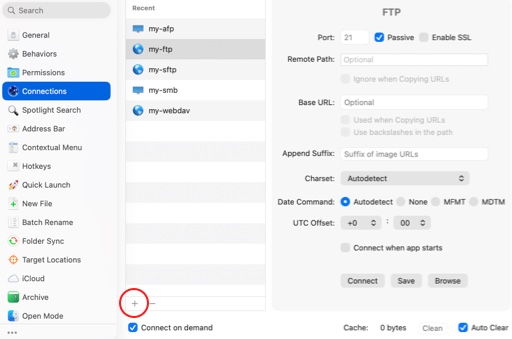
Supported Server Types SMB, AFP, NFS, SFTP, FTP, WebDAV HTTP(S), Dropbox, OneDrive, Aliyun Drive, Baidu Netdisk, Box, Google Drive, Amazon S3 (compatible), Aliyun OSS, Tencent Cloud COS, Huawei Cloud OBS, JD Cloud OSS, Qiniu KODO, and UpYun Storage. Among these, SMB, AFP, and NFS are connected via macOS system mounting, while the rest are built-in connections within QSpace.
Name Server name (optional).
Icon Server icon.
Host Server address (domain or IP). Do not include protocol or path.
User Username for the server.
Password User password for the server.
Port Usually the default value; adjust according to the server's custom configuration.
Remote Path Default path when entering the server (default is /). Can be set to Ignore when copying URL.
Base URL URL prefix for the server. Can be set to Use when copying URL.
Append Suffix Add a custom suffix when copying the URL of an image file on the server.
Connect when app starts Whether to automatically connect to this server when the application launches.
SMB、AFP、NFS
When connecting to SMB, AFP, or NFS servers, folders on the server are mounted locally as shared folders. They are accessed similarly to external disks, allowing direct file access from other applications within the system.
Shared Folder A list of folders that are automatically mounted when connecting to the server.
Unmount on exit Whether to unmount connected shared folders when the application quits.
FTP
Passive Whether to connect to this server in passive mode.
Enable SSL Whether to enable SSL for connecting to this server.
Charset Usually set to Autodetect. If garbled characters appear or listing fails, choose the appropriate encoding according to the server configuration.
Date Command Usually set to Autodetect. If the modified date is incorrect after uploading files, select the date command supported by the server.
UTC Offset Adjust if the displayed modification dates of files on the server appear incorrect.
SFTP
Authentication Supports connecting to the server via Password, Private Key (currently only id_rsa format is supported), or SSH_AUTH_SOCK agent authentication.
Dropbox
Link Local Folder Associate the Dropbox client's local folder. This enables the Copy Shared Link and View Online functions from the Context Menu within the Dropbox local folder (requires a one-time connection for authentication; does not need to stay connected).
OneDrive
Link Local Folder Associate the OneDrive client's local folder. This enables the Copy Shared Link and View Online functions from the Context Menu within the OneDrive local folder (requires a one-time connection for authentication; does not need to stay connected).
Google Drive
To connect, you need to create your own Google app, obtain the Client ID and Client Secret, and enter them in the configuration fields. For steps, refer to: Connecting to Google Drive.
Options
Connect On Demand Automatically connect to this server when accessing folders on it.
Clean Cache Remove temporary cache files generated when previewing or editing files on the server.
Auto Clean Automatically clean up cache files generated by server connections when the application restarts.