
Workspace
Concept
A workspace is essentially a window, encompassing the multi-pane layout, sidebar, the folders opened in each pane, and their display modes.
Saved workspaces can be opened via the sidebar, toolbar, or custom hotkeys to quickly restore them to their exact state before closing.
When using a multi-tab window, each tab is an individual workspace.
Options
QSpace Settings > General

Default Workspace The workspace that QSpace automatically creates upon first launch.
New Workspace Selecting 'Free style' does not auto-save new workspaces. You can manually save by pressing Command+S.
Startup Window The workspace window that opens when QSpace starts.
Hotkeys
QSpace Settings > Hotkeys
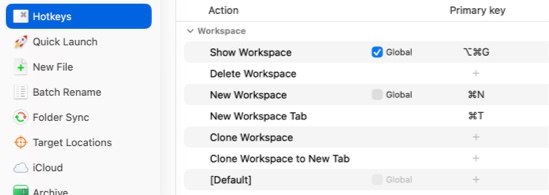
Show Workspace Open the workspace list or the only workspace. Default hotkey: Option + Command + G.
Delete Workspace Delete the current workspace.
New Workspace Create a new workspace window. Default hotkey: Command + N.
New Workspace Tab Create a new workspace window as a tab. Default hotkey: Command + T.
Clone Workspace Duplicate the current workspace.
Clone Workspace to New Tab Duplicate the current workspace and display it as a tab.