Folder Sync
Start
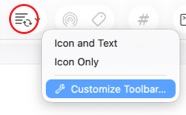
In Toolbar > Customize Toolbar, add the Folder Sync button.
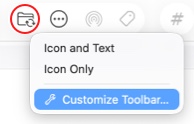
In QSpace Settings > Contextual Menu, add Folder Sync to the contextual menu.

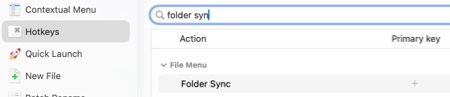
In QSpace Settings > Hotkeys, customize a Hotkey to trigger Folder Sync.
Options
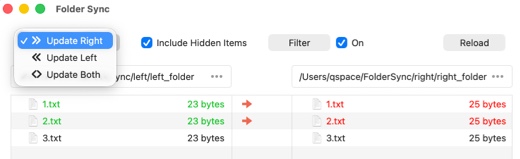
Update Right Update the contents of the right folder with newer items from the left folder.
Update Left Update the contents of the left folder with newer items from the right folder.
Update Both Synchronize both sides by updating newer items in each folder with those from the other.
Include Hidden Items Whether to update hidden files during the sync process.
Filter Add exclusion or inclusion rules to filter which content gets updated.
Context Menu
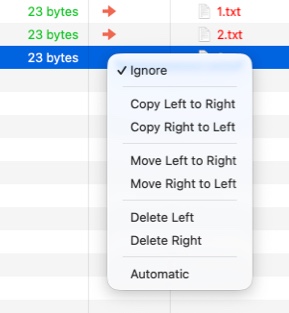
Ignore Ignore the selected file(s).
Copy Left to Right Copy the selected file(s) from the left side to the right folder.
Copy Right to Left Copy the selected file(s) from the right side to the left folder.
Move Left to Right Move the selected file(s) from the left side to the right folder.
Move Right to Left Move the selected file(s) from the right side to the left folder.
Delete Right Delete the selected file(s) on the right side.
Delete Left Delete the selected file(s) on the left side.
Automatic Synchronize files automatically according to the defined rules.
Preset
QSpace Settings > Folder Sync
New Create a new Folder Sync preset.
Run Execute the selected preset.
Edit Edit the selected preset.
Delete Delete the selected preset.
Add Presets of Folder Sync via toolbar customization for quick access.