
Address Bar
Access
Click the Expand button to the right of a folder to quickly access its subfolders.
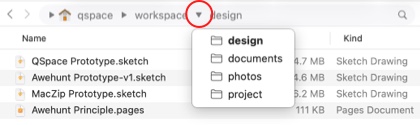
Drag and drop files onto a Folder Name in the address bar to copy or move them.
Drag and drop a folder onto the Blank to the right of the address bar to open it in the current pane.
Edit
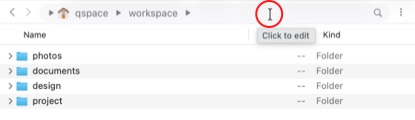
Click the Blank to the right of the address bar or press Command + L to enter address edit mode.
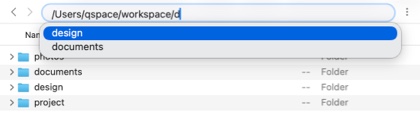
Manually enter a location with support for auto-completion suggestions.
Options
QSpace Settings > Address Bar
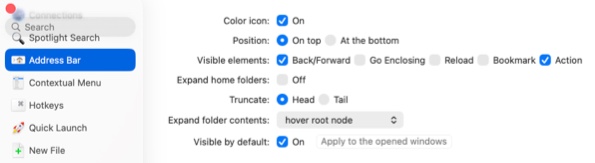
Color icon Display icons in the address bar in color or grayscale.
Position Display the address bar at the top or bottom of the pane.
Visible elements Choose to show Back/Forward, Go Enclosing, Reload, Bookmark, and Action in the address bar.
Expand home folder Whether to expand the Home folder to display the disk.
Truncate When the address bar cannot display fully, prioritize truncating from the head or the tail.
Expand folder contents Choose to automatically expand folders when the cursor hovers over the expand button, or only when clicked.
Visible by default Whether to display the address bar in new windows.