
Multi-Pane
Layout
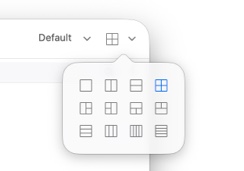
QSpace supports 12 different pane layouts, which can be switched via the toolbar or using hotkeys.
Click the Layout button on the toolbar to open a menu and switch layouts.
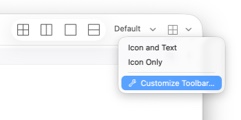
In Toolbar > Context Menu > Customize Toolbar, you can add individual layout buttons to the toolbar for quick switching.
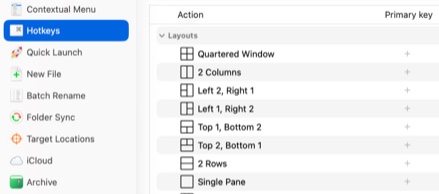
In QSpace Settings > Hotkeys > Layout, you can customize hotkeys for switching layouts.
Actions
Press Tab to move focus to the next pane. Press Shift + Tab to move focus in reverse.
Move Pane To Reposition a pane using custom context menu items.
Move Pane Up Move a pane upward using custom context menu items or hotkeys.
Move Pane Down Move a pane downward using custom context menu items or hotkeys.
Move Pane Left Move a pane to the left using custom context menu items or hotkeys.
Move Pane Right Move a pane to the right using custom context menu items or hotkeys.
File Actions
Copy to Pane Copy files to the folder opened in a specific pane using custom context menu items or hotkeys.
Move to Pane Move files to the folder opened in a specific pane using custom context menu items or hotkeys.
Options
QSpace Settings > General

Current pane Configure the highlight of address bar, border and corner of the active pane in the window.
Inactive pane brightness Adjust the brightness of inactive panes in the window.
Defaults
In QSpace Settings > General, customize properties for new windows at the bottom of the page.
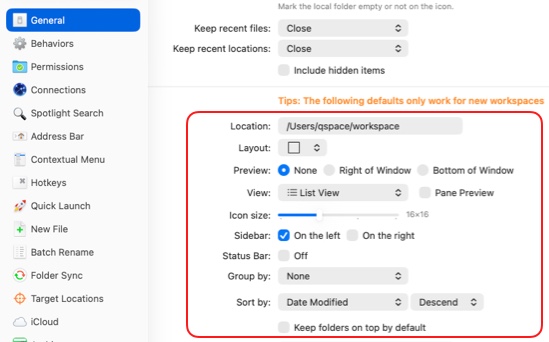
Location The default location to open in a pane.
Layout The default layout for new windows.
Preview Multiple panes share a single preview panel in the window.
View The default display mode for panes. When Pane Preview is enabled, each pane has its own preview panel.
Icon size The size of file thumbnails.
Sidebar Display the Sidebar on the left or right side of the window.
Status Bar Display a status bar at the bottom of the pane, showing information such as the number of items in the folder and available disk space.