
Sidebar
Customize
Press Command + Option + S to toggle the sidebar. Use the Context Menu on the sidebar for customization.
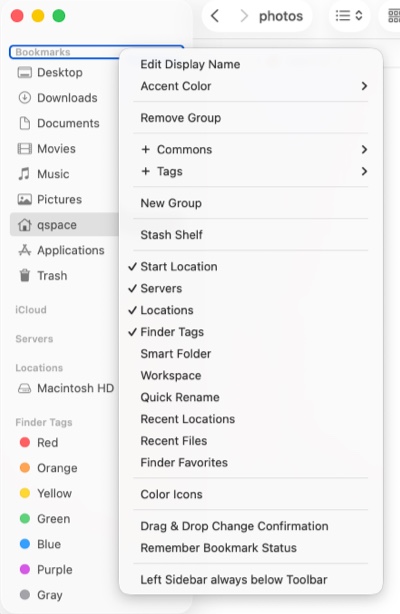
Edit Display Name Edit the display name of a bookmark or custom group.
Accent Color Customize the accent color for a bookmark or an entire group.
Remove Bookmark Remove a Bookmark.
Remove from Sidebar Hide this item from the sidebar, commonly used for external disks or items in the Locations group. To restore, use the Show All option from the group's context menu.
Quick View Quickly browse items within a bookmarked Folder.
Remove Group Remove the entire Group, including all its bookmarks.
New Group Create a new bookmark Group.
Stash Shelf Whether to display the Stash Shelf.
Start Location Whether to display the pane's Start Location (if set).
Servers Whether to display the Servers group.
Locations Whether to display the Locations group.
Finder Tags Whether to display the Finder Tags group.
Finder Favorites Whether to display the Finder Favorites group.
Smart Folders Whether to display the group for Smart Folders saved in Finder.
Workspaces Whether to display the Workspaces group.
Quick Rename Whether to display the Quick Rename group.
Recent Locations Whether to display the group for recently visited locations.
Recent Files Whether to display the group for recently opened files.
Color Icons Display sidebar icons in color or grayscale.
Show Disk Available Size Whether to label Disk available size.
Eject Disk Confirmation Whether to prompt for confirmation when ejecting a Disk.
Auto-hide Eject Button Whether to hide the Disk eject button, showing it only on hover.
Drag & Drop Change Confirmation Whether to prompt for confirmation when reordering items via drag-and-drop on the sidebar.
Remember Bookmark State Whether to remember the expanded/collapsed state of bookmarked Folders.
Left Sidebar Always Below Toolbar Whether to position the sidebar below the toolbar.
Right Sidebar
At the top Menu Bar > View > Show/Hide Right Sidebar to toggle the right sidebar.
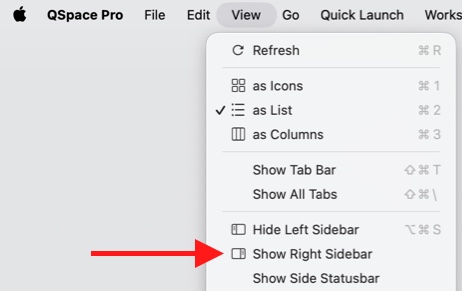
When the right sidebar is enabled, the left sidebar is automatically displayed below the toolbar.
Sync with Left Makes the right sidebar mirror the display of the left sidebar.
Assign to Same Side Pane When using a left-right dual-pane layout, clicking a bookmark in the right pane always opens it in the left pane.